Registering and Deregistering Licenses
Overview
Lightning Review requires license registration via the internet.
Here's how to register your license.
Before Registering Your License
Lightning Review connects to the internet during license activation.
To activate your license correctly, you must be able to connect to the following domains.
- License Activation Site:
https://api.cryptlex.com:443/v3/licenses
The message "Authentication failed!" is displayed.
Registering the License
- In the [Register License] dialog, check "Enter product key".
- Enter the product key in [Product Key] and your email address in [Email Address], then select [Register].
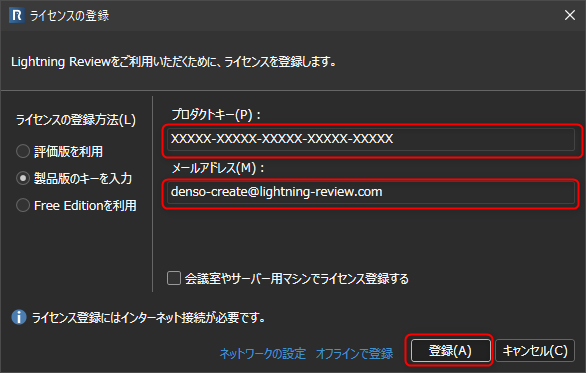
If license registration fails, please check the following.
Setting up a proxy
If your internet connection goes through a proxy server, license registration may fail.
If it fails, the following network settings are required.
- In the [License Registration] dialog, check Standard Edition and select [Network Settings].
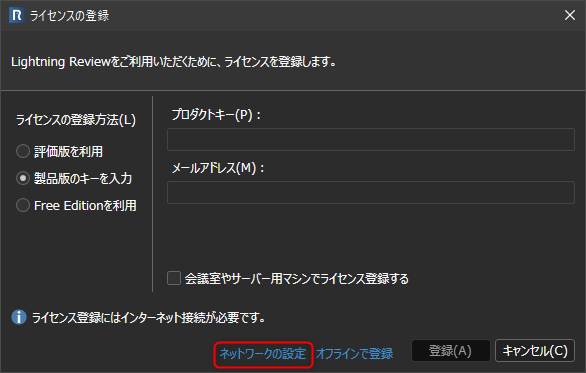
- In the [Network Connection Information] dialog, set the proxy information.
Please replace "proxy.lightning-review.com" in the image below with your company's proxy server.
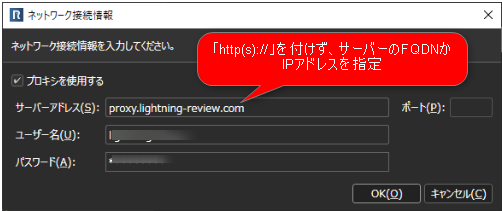
After configuring the above settings, please perform the registration process again.
Deactivating the License
- Select [Help] - [Deactivate License].
- In the [Deactivate License] dialog box, select [OK].
Notes
During license authentication, communication is performed using the "100-Continue" HTTP request header.
An error may occur during license authentication on a proxy server that supports HTTP/1.0.
In this case, one of the following actions is required:
- Configure to bypass 100-Continue
- Upgrade to a version that supports HTTP/1.1