Slack/Teams Integration
Overview
Using the "Slack/Teams Integration" extension, you can post review revision requests and confirmation requests from Lightning Review to Slack or Microsoft Teams.
It automatically creates a post containing the review file path and the ID of the issue,
allowing you to contact review members with just a mouse click, enabling quick information sharing. This section explains how to use and configure the "Slack/Teams Integration" extension.
Installation
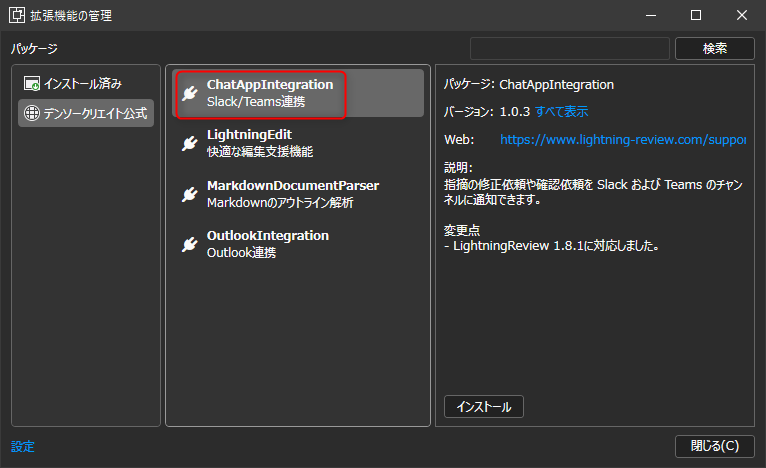
- Click the [Tools] menu - [Manage Extensions] to open the [Manage Extensions] dialog.
- Select [Slack/Teams Integration] from [Denso Create Official].
- Click the [Install] button.
- Restart Lightning Review.
Registering the Channel to Integrate
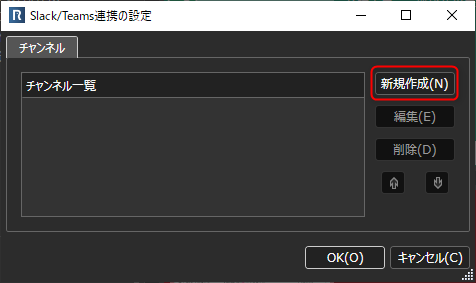
- Click the [Tools] menu - [Slack/Teams Integration] to open the [Slack/Teams Integration] dialog.
- Click [Create New].
- In the [Channel Settings] dialog, do the following:
-
Name: Enter the name of the integration setting to be managed on the tool.
-
Target Tool: Select the tool to integrate with.
-
URL: Enter the integration URL created on the Slack/Microsoft Teams side.
After configuring the above settings, click the [Test Send] link to post a test message to the channel.

Posting Correction and Confirmation Requests
Corrections and correction results from reviews are posted to the integrated tool using the following method:
- In [Tile View] or [Grid View], select the target issue.
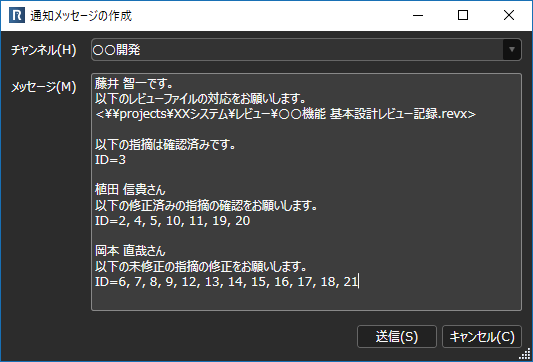
- Click the [Tools] - [Create Notification Message] menu to launch the [Create Notification Message] dialog box.
- Select the channel to post to from the [Channel] list.
- Edit the message field as needed and click the [Send] button.